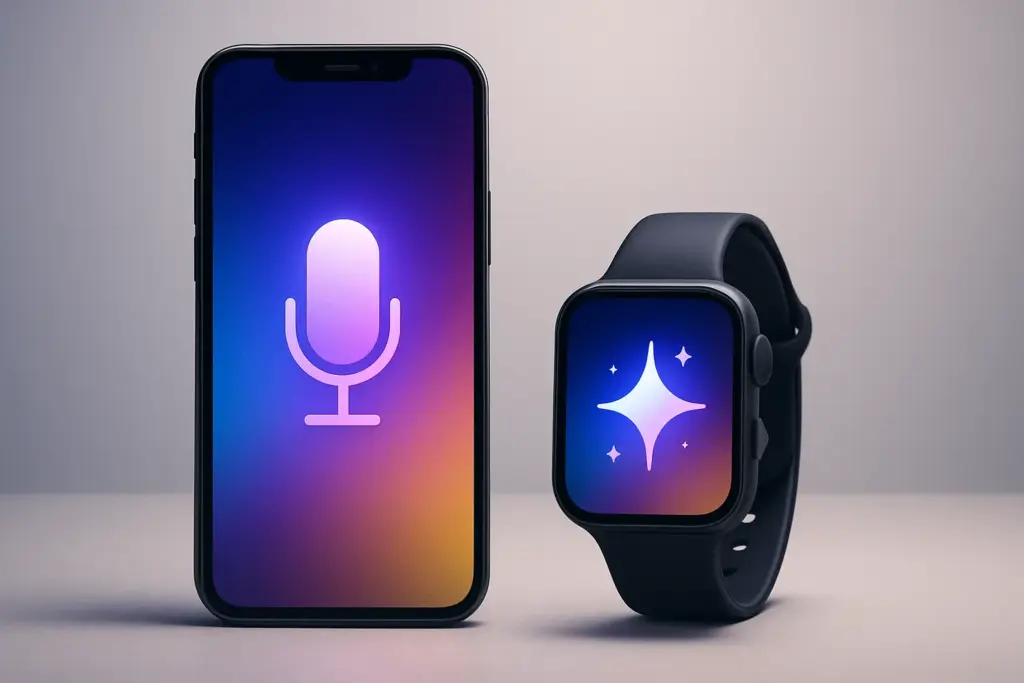
The upcoming Google Assistant shutdown on Android and Wear OS devices marks one of the most significant architectural shifts in mobile history, as Google transitions its ecosystem entirely to the AI-driven Gemini assistant. For millions of users who rely on daily voice commands to control their smart homes, set reminders, or navigate while driving, this transition represents both an exciting upgrade and a potential disruption. By understanding what this phase-out means and how to prepare your devices, you can ensure a seamless transition to Gemini without losing your favorite hands-free functionalities.
Understanding the Google Assistant Shutdown on Android
For nearly a decade, Google Assistant has been the default voice interface for billions of devices worldwide. However, the rise of large language models (LLMs) has fundamentally changed what users expect from a digital companion. Google’s decision to sunset the classic Assistant in favor of Gemini is not just a rebranding effort; it is a complete rebuild of how voice interactions are processed on your devices.
Starting next month, users on both Android smartphones and Wear OS smartwatches will begin seeing prompts to transition to Gemini. While legacy Assistant features will be deprecated in phases, the core voice activation framework will officially shift to the Gemini engine. This means that older voice models will no longer receive system updates, and certain legacy micro-features—such as specific third-party voice triggers and older smart home integrations—will cease to function entirely.
Wear OS users, in particular, will feel the impact of this change. Smartwatches rely heavily on lightweight, fast-executing voice commands. Google has promised that Gemini on Wear OS has been optimized to run efficiently without causing excessive resource drain, but early adopters should still prepare for a brief adjustment period as the software matures.
Gemini vs. Google Assistant: What Changes for You?
The primary difference between the classic Google Assistant and Gemini lies in cognitive capability. While Assistant was a command-and-control system built on rigid, pre-programmed templates, Gemini is a multimodal generative AI capable of understanding context, nuance, and complex multi-step instructions.
However, this shift does come with trade-offs. In its early stages, Gemini struggled with basic on-device tasks that Assistant handled effortlessly, such as setting timers, reading system notifications, and executing offline commands. Google has worked rapidly to bridge this feature gap, but some differences remain.
| Feature Category | Classic Google Assistant | Gemini AI Assistant |
|---|---|---|
| Natural Language Understanding | Basic template-matching; struggles with complex context. | Advanced contextual reasoning; understands follow-up questions. |
| Offline Functionality | Strong local processing for basic device commands without internet. | Limited offline capabilities; requires active connection for complex tasks. |
| Smart Home Routines | Deeply integrated with Google Home; highly reliable. | Supported, but complex custom routines are still transitioning. |
| System Performance & Battery | Lightweight, minimal background resource footprint. | Heavier processing requirements; highly optimized in recent updates. |
| Third-Party App Control | Relies on older App Actions developer framework. | Utilizes modern extension system for real-time app integration. |
The Offline Functionality Dilemma
One of the most critical areas of concern during this transition is how the system handles offline commands. Legacy Assistant allowed users to toggle system settings, toggle airplane mode, or set alarms even when disconnected from cellular networks or Wi-Fi. Because Gemini relies heavily on cloud-based neural networks to parse intent, offline performance has been a challenge. Google is actively deploying smaller, on-device models to handle basic offline tasks, but users in low-connectivity areas may notice a difference in responsiveness during the initial rollout phase.
How to Prepare Your Android and Wear OS Devices
To avoid sudden disruptions when the legacy service goes dark, you should proactively update your devices and configure Gemini as your primary digital helper. Follow these steps to ensure your system is fully prepared.
Step 1: Install the Latest System Updates
Before switching your assistant framework, ensure your operating system is fully up to date. Go to Settings > System > System Update on your phone and check for pending installations. For your smartwatch, open the settings menu on your Wear OS device, navigate to system updates, and download any available patches. These system-level updates contain the necessary background APIs to run Gemini efficiently.
Step 2: Update the Google App and Gemini
The core of the assistant transition is managed through the main Google App. If you do not have automatic updates enabled in the Google Play Store, you will need to update it manually. For users who reside in regions where official rollouts are delayed, or those utilizing Play Store alternatives, sourcing a secure Android APK for the latest Google App and Gemini app is a viable way to bypass regional restrictions and secure the latest features early.
Step 3: Set Gemini as Your Default Digital Assistant
Once your apps are updated, you can manually toggle the default assistant settings on your smartphone:
- Open your device Settings.
- Navigate to Apps > Default Apps > Digital Assistant App.
- Select Gemini from the list of available options.
- Follow the on-screen prompts to grant the necessary system permissions.
Step 4: Audit App Permissions
Because Gemini operates as a highly integrated AI, it requires specific permissions to function at its best. Make sure it has access to your microphone, location, calendar, and contacts. Without these permissions, Gemini will not be able to perform basic tasks like reading your schedule, setting location-based reminders, or navigating via Google Maps.
Common Pitfalls and How to Avoid Them
Major system migrations are rarely without friction. As you transition away from the classic Assistant, keep an eye out for these common issues that can affect your user experience.
1. Increased Battery Consumption
Generative AI models require more computational power than legacy systems. Some users have reported temporary battery drain after switching to Gemini. To mitigate this, ensure that background battery optimization is enabled for the Gemini app, and clear your device cache if you notice unusual warmth or rapid power drop-offs after using voice commands.
2. Broken Smart Home Routines
If you have complex, multi-step routines configured in the Google Home app, some triggers may fail to execute properly under the new Gemini engine. To fix this, open your Google Home app, review your active routines, and re-save them. This forces the system to re-register the commands under the updated integration framework.
3. Privacy and Data Sharing Concerns
Transitioning to an advanced AI means your voice queries and contextual data are processed differently. If you are concerned about privacy, navigate to your Google Account settings and review your “Gemini Apps Activity” controls. Here, you can choose how long your interactions are stored, opt out of human review processes, and delete your past query history.
Essential Tips for a Smooth AI Transition
Navigating this massive platform change is much easier when you know how to leverage the system to your advantage. Here are several expert tips to help you get the most out of the new setup:
- Utilize Extensions: Gemini uses “Extensions” to connect directly with YouTube, Google Workspace, Maps, and Hotels. Enable these in the Gemini settings to allow the AI to draft emails, summarize documents, and plan trips using your real-time personal data.
- Keep an Android APK Backup: If an automated update introduces bugs or performance issues on your specific hardware, keeping a stable version of the Google App APK saved locally can help you roll back to a functional state while waiting for a hotfix.
- Optimize Voice Match: Because Gemini is highly sensitive to conversational patterns, re-running the Voice Match setup under quiet conditions will drastically improve its wake-word accuracy, especially on Wear OS smartwatches with smaller microphone arrays.
- Monitor Your Connectivity: Since many advanced Gemini features rely on cloud processing, ensure your mobile data settings allow the app to use background data freely, preventing execution failures when you are away from Wi-Fi.
Key Takeaways
- Google is officially shutting down the classic Google Assistant next month, transitioning both Android and Wear OS devices fully to Gemini.
- Gemini offers vastly superior contextual understanding, natural language processing, and app integration compared to the legacy Assistant.
- Some legacy features, particularly offline system controls and complex custom routines, may experience initial compatibility issues.
- Users must manually update their Google App, system software, and digital assistant preferences to ensure a smooth transition.
- Privacy conscious users should review their Gemini Apps Activity settings to manage data retention and AI training options.
- Sourcing secure updates via official channels or trusted Android APK platforms can help users resolve roll-out delays and software bugs quickly.
Frequently Asked Questions
Will my old smart home routines still work after the Google Assistant shutdown?
Yes, most standard smart home routines will continue to function because Gemini integrates directly with the existing Google Home backend. However, complex custom routines containing highly specific legacy voice triggers may require you to re-save or recreate them within the Google Home app to ensure complete compatibility with the new AI engine.
Can I use Gemini offline without an internet connection?
Gemini is primarily a cloud-based AI, meaning it requires an active internet connection for advanced reasoning and creative tasks. While Google is rolling out smaller, on-device models to handle basic offline commands like setting alarms or toggling system settings, your overall experience will be limited when your device is completely offline.
How does Gemini affect my Android phone’s battery life?
Because Gemini uses more advanced processing algorithms than the legacy Google Assistant, it may initially cause a slight increase in battery consumption. You can minimize this impact by keeping your apps updated, enabling adaptive battery settings, and disabling unnecessary background permissions for features you do not use.
Is Gemini safer than Google Assistant regarding user privacy?
Gemini adheres to Google’s strict data security standards, but it processes information differently to improve its generative capabilities. To maintain control over your personal data, you should visit your Google Account dashboard to manage your Gemini Apps Activity, where you can pause data collection, opt out of human reviews, and clear your search history.
What happens to Wear OS smartwatches after the transition?
Wear OS smartwatches will transition to a specialized, resource-efficient version of Gemini. While the interface will look different and focus on quick, actionable voice prompts, the transition will ultimately deliver faster, more natural voice interactions once the software update is fully installed on your wearable device.
Where can I download the latest Gemini updates if they aren’t in my Play Store?
If the latest updates have not yet rolled out to your region via the Google Play Store, you can find safe, verified installation files on trusted Android APK hosting platforms. Always ensure you are downloading from reputable sources to protect your device from security vulnerabilities.
Embrace the Future of Mobile AI
While saying goodbye to a familiar tool like Google Assistant can feel daunting, the transition to Gemini opens up an entirely new world of productivity and seamless device interaction. By preparing your system, updating your applications, and optimizing your settings today, you will be ready to harness the full power of next-generation mobile AI the moment the switch occurs. For safe, verified updates, and to keep your Android and Wear OS devices running at their peak, rely on GenuineAPKs as your trusted destination for secure Android APK downloads and the latest mobile tech guides.

Leave a Comment