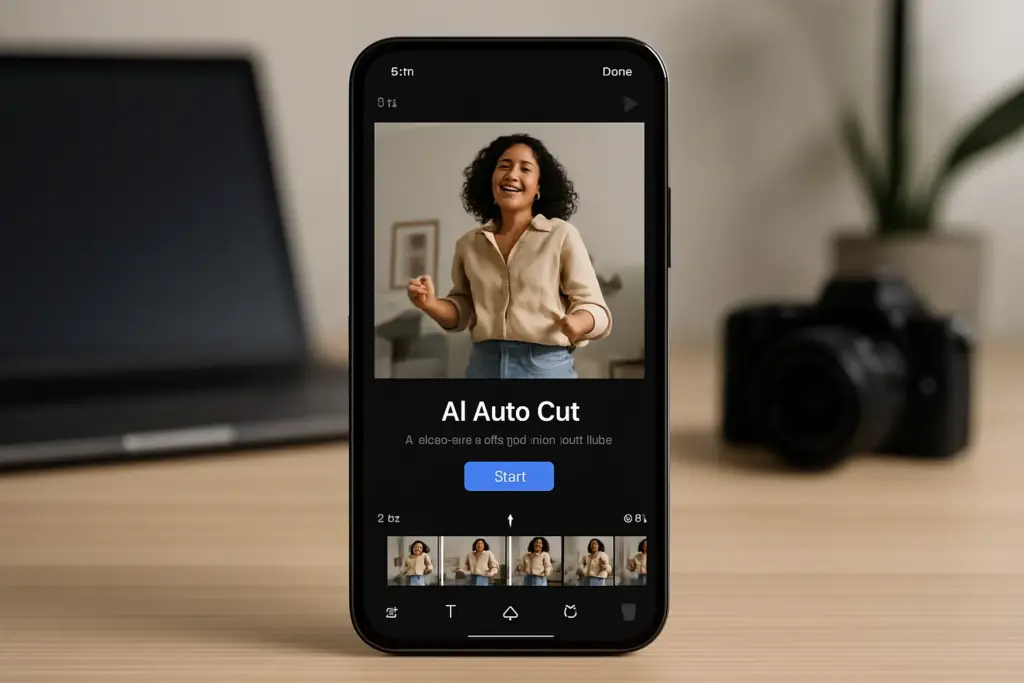
Editing videos can often be a time-consuming process, especially when creating engaging reels for social media. However, with CapCut’s AI Auto-Cut feature, you can edit reels faster and more efficiently. This tutorial provides a step-by-step guide on how to utilize this powerful tool on your Android device, allowing you to create stunning videos effortlessly.
Overview of CapCut and AI Auto-Cut
CapCut is a versatile video editing application designed for Android users, offering an array of features to enhance your video editing experience. One of its standout features is AI Auto-Cut, which uses artificial intelligence to analyze your footage and make precise cuts, saving you significant editing time. Whether you’re creating content for TikTok, Instagram, or any other platform, learning how to use this feature can streamline your workflow.
Benefits of Using AI Auto-Cut
- Time Efficiency: AI Auto-Cut significantly reduces the time spent on manual editing.
- Enhanced Creativity: Focus more on your creative ideas rather than the technical details of editing.
- Professional Quality: Achieve polished and professional-looking videos with minimal effort.
How to Edit Reels Faster with CapCut AI Auto-Cut
Follow these steps to leverage the AI Auto-Cut feature in CapCut for your reels:
- Download and Install CapCut: If you haven’t already, download CapCut from the Google Play Store and install it on your Android device.
- Create a New Project: Open the app and tap on the “New Project” button to start editing your reel.
- Add Your Footage: Select the video clips you want to include in your reel from your gallery, then tap “Add” to import them into the project.
- Access AI Auto-Cut: Once your clips are loaded, tap on the “AI Auto-Cut” feature located in the editing toolbar.
- Analyze Footage: Allow CapCut to analyze your footage. The AI will automatically identify the best moments in your clips and suggest cuts.
- Review Suggested Cuts: After the analysis, review the suggested cuts made by the AI. You can adjust or accept these cuts as needed.
- Add Music and Effects: Enhance your reel by adding music, sound effects, or transitions to complement your edits.
- Export Your Video: Once satisfied with your edits, tap the “Export” button to save your reel to your device or share it directly on social media.
Common Mistakes or Pitfalls
While using CapCut and the AI Auto-Cut feature, be mindful of the following common mistakes:
- Ignoring the AI Suggestions: Always review the AI’s suggested cuts, as it may not capture every important moment accurately.
- Overlooking Audio Sync: Ensure that the audio aligns with your cuts to avoid disjointed transitions.
- Neglecting to Save Your Work: Regularly save your project to prevent losing any edits during the process.
Tips for Android Users
Here are some practical tips to enhance your experience while editing reels with CapCut on Android:
- Keep Your Device Updated: Ensure that your Android device and CapCut app are updated to the latest version for optimal performance.
- Use High-Quality Footage: Start with high-resolution video clips to enhance the overall quality of your final reel.
- Leverage Templates: Explore CapCut’s built-in templates for quick and stylish edits.
Key Takeaways
- CapCut’s AI Auto-Cut feature saves time and enhances editing efficiency.
- The app is user-friendly, making it accessible for beginners and professionals alike.
- Always review AI suggestions to ensure the best moments are captured.
- Regularly save your projects to avoid losing progress.
- Enhance your reels with music and effects for a polished final product.
- Keep your Android device updated for the best editing experience.
FAQ
What is CapCut AI Auto-Cut?
CapCut AI Auto-Cut is a feature that uses artificial intelligence to analyze video footage and make automatic cuts to create engaging clips quickly.
Can I use CapCut on my Android device?
Yes, CapCut is available for download on the Google Play Store and is compatible with most Android devices.
Is CapCut free to use?
Yes, CapCut is free to download and use, though it may contain optional in-app purchases.
How can I improve the quality of my reels in CapCut?
Using high-quality footage, adding effects, and incorporating music can significantly enhance the overall quality of your reels.
Does CapCut support sharing to social media?
Yes, CapCut allows you to export your videos directly to various social media platforms after editing.
What if the AI Auto-Cut doesn’t capture the moments I wanted?
You can manually adjust the cuts suggested by the AI to ensure all important moments are included in your final edit.



Leave a Comment